
















Edit review items and competencies
Product Guides for EchoSpan 360-Degree Feedback
Once your review content is in place, you can fine-tune it: reword items, change who sees them, require answers, reorder items and competencies, and give each competency a description and instructions. Everything here happens on Setup > Review Items. To add new content, see Build your review content.
Edit an item
Expand a competency, then click the pencil icon at the right of an item (or double-click the item text). The item opens for editing in place.
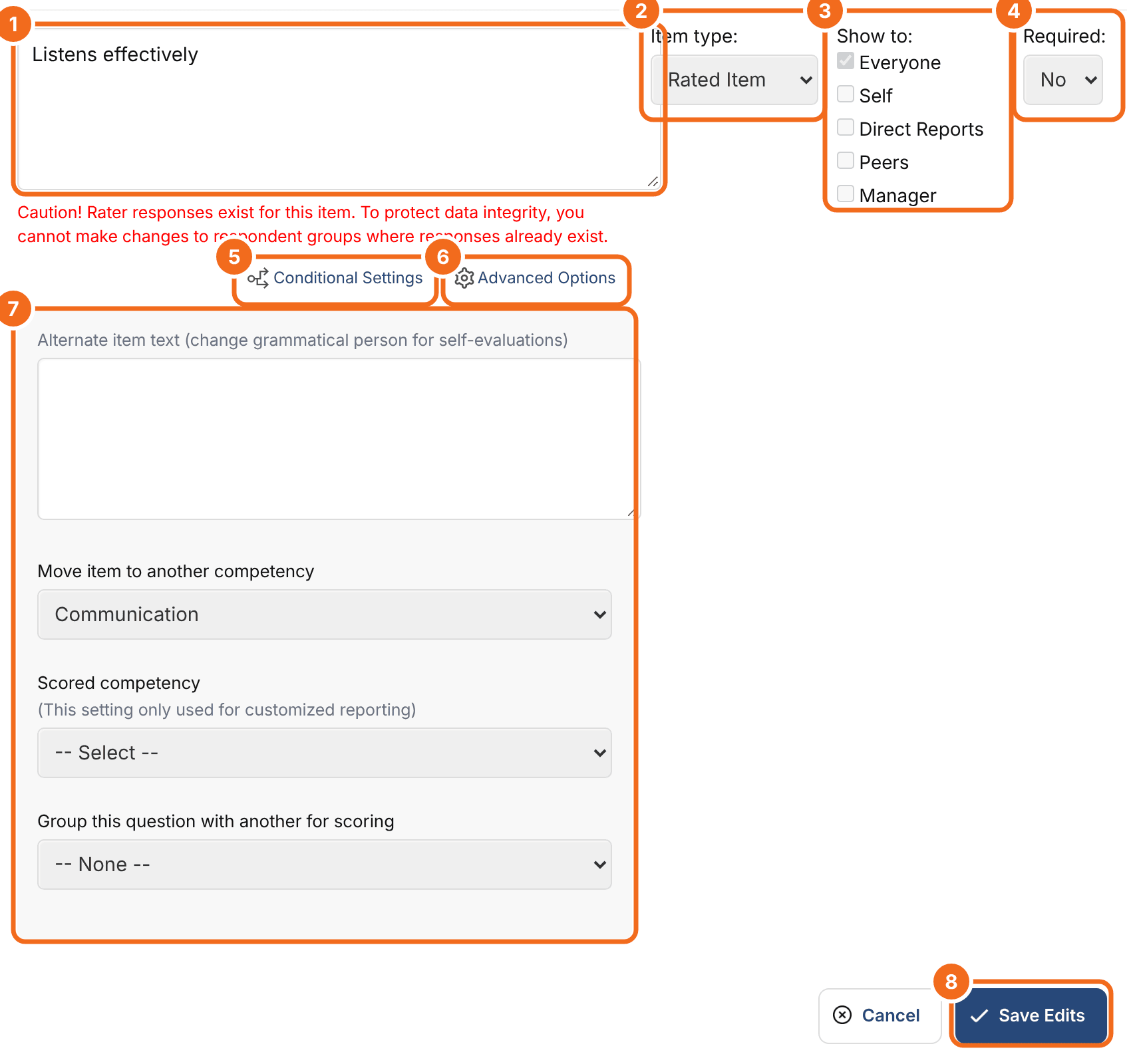
- Change the wording in the text box.
- Item type changes how the item is answered. See Item types and answer choices.
- Show to controls which relationship groups see the item. Leave Everyone ticked, or tick only the groups that should answer it, for example Direct Reports for items about managing people.
- Required: choose Yes to make Raters answer the item before they can move on.
- Conditional Settings shows the item only when an earlier answer falls in a range you set. See Advanced review content options.
- Advanced Options opens more settings (7):
- Alternate item text: wording shown only to the self-evaluator, for example "I listen effectively" instead of "Listens effectively". Reports always use the standard wording.
- Move item to another competency.
- Scored competency and Group this question with another for scoring: used for custom scoring in reports. See Advanced review content options.
- Click Save Edits, or Cancel to leave the item unchanged.
If Raters have already answered an item, you can't remove relationship groups that have responses, and the editor shows a caution message.
Change several items at once
- Tick the box next to each item (or click Select/Deselect All).
- Choose an action from Modify Selected:
- Set Required: Yes or No.
- Move to another competency.
- Change Type: Rated, Reverse-scored or Comment Box.
- Visibility: Hide Item or Show Item (see below).
- AI Summarization: ON (default) or OFF, which controls whether the item's comments are included in AI summaries.
- Click Apply.
Hide an item instead of deleting it
Hiding removes an item from the review and from reports without deleting it or its responses. Hidden items show with their text struck through and "shown to no one". To bring an item back, select it and choose Visibility: Show Item. Use hiding rather than deleting once reviews have started: Delete Selected Items permanently deletes the items and every response to them.
Reorder items and competencies
- Items: drag an item by the arrows icon at its right (or focus the icon and use the up and down arrow keys), then click Save Item Order.
- Competencies: click Reorder Competencies, drag the competencies into order and save.
The new order is used in the review and in standard reports.
Edit a competency
Expand a competency and click Properties in its toolbar.
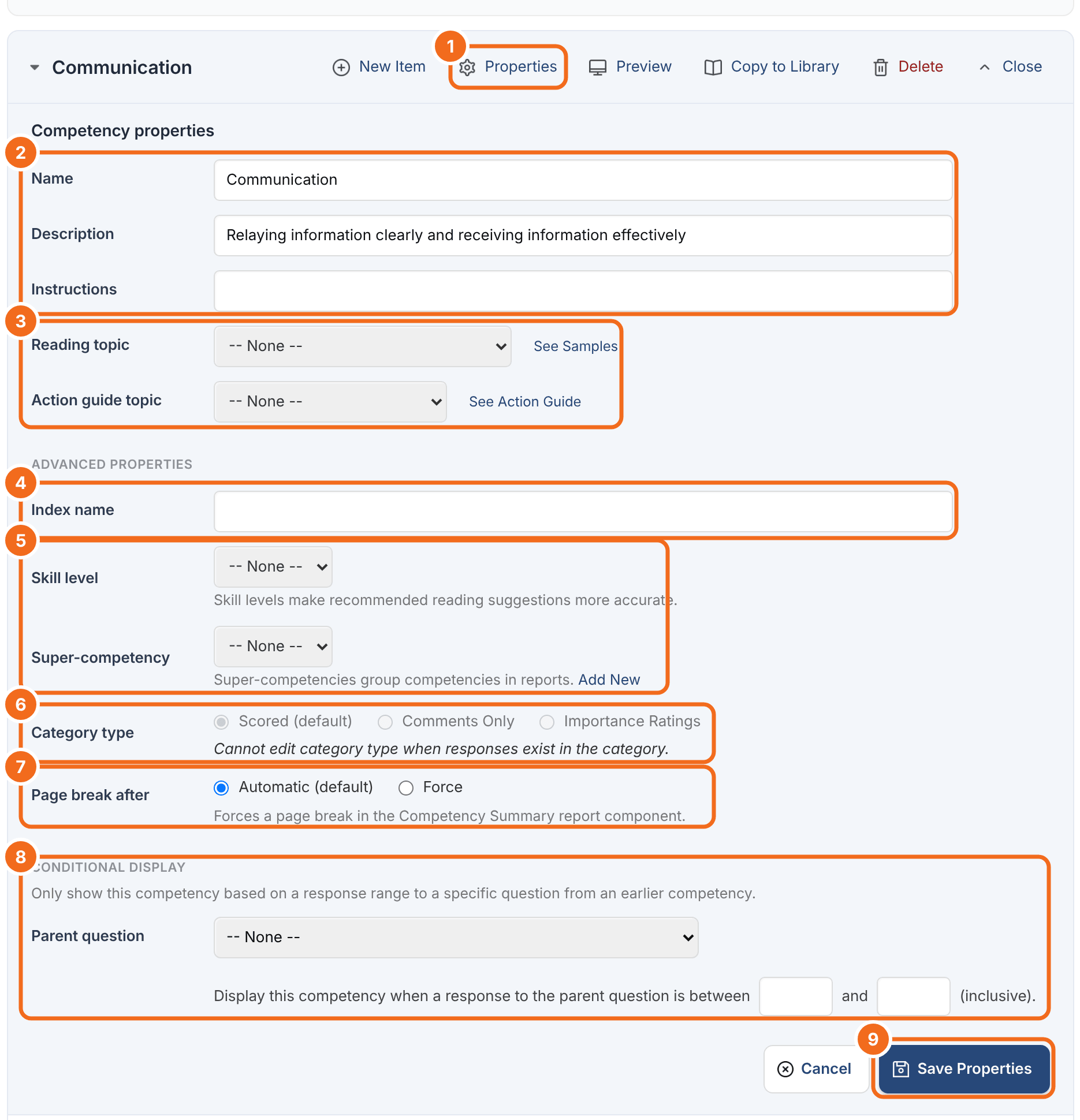
- Click Properties.
- Name, Description and Instructions: the description and instructions appear to Raters with the competency.
- Reading topic and Action guide topic link your competency to EchoSpan's developmental reading suggestions and action guides. This matters most for custom competencies, which have no topic until you pick one. Click See Samples or See Action Guide to preview.
- Index name groups competencies so a report section can show just one group.
- Skill level sharpens reading suggestions; Super-competency rolls competencies up into broader dimensions in reports.
- Category type: Scored (default), Comments Only or Importance Ratings. It can't be changed once the competency has responses.
- Page break after: Force starts a new page after this competency in the Competency Summary report section.
- Conditional display shows the whole competency only when an earlier answer falls in a range.
- Click Save Properties.
Settings 4 to 8 are explained in Advanced review content options.
The toolbar also has Preview (see the competency as Raters will), Copy to Library and Delete. Deleting a competency also deletes every response to it.
Personalize items with merge fields
Item text can include merge fields that fill in details from the Target's record, for example "How well does [[fname]] run team meetings?". Available fields: [[fname]], [[lname]], [[altname]], [[altname2]], [[custom2]] and [[custom3]]. The custom fields need values on each Target record (see Add Targets to a project).
Good to know
- Completion Time estimates how long the review takes, once your content is final.
- Export to Excel downloads the current content, which is handy for review by stakeholders.
- Changes take effect right away for anyone who hasn't answered yet. Try to finish editing before the project opens.
Related guides
- Build your review content
- Item types and answer choices
- Configure the rating scale
- Advanced review content options
495